Getting Set Up
Last update: October 14, 2026
Ok. We have a basic understanding of LLMs, prompting, CLAUDE.md… now let’s get this party started.
Target file structure
In a few moments, we’ll get our folder structure set up. This is what we are targeting:
inbox/
├── CLAUDE.md
├── styles.md
└── processed/
    └── <transcript-name>/
        ├── <original transcript file>
        ├── overview.html
        └── slides.html
The way to read this: our parent-level folder is called inbox. There are two files in there, and then there’s another folder, called processed. Within the processed folder will be a sub-folder for each transcript we pull in.
Setting up our file structure
Create your parent folder
First, create a folder somewhere. This could be in your Documents. On your Desktop. Whatever. Name it anything you want. I’m calling mine demo_folder.
Open this in VS Code
Next, open Visual Studio back up, and select that top-left icon which looks like a few pages. Open the folder that you just created.
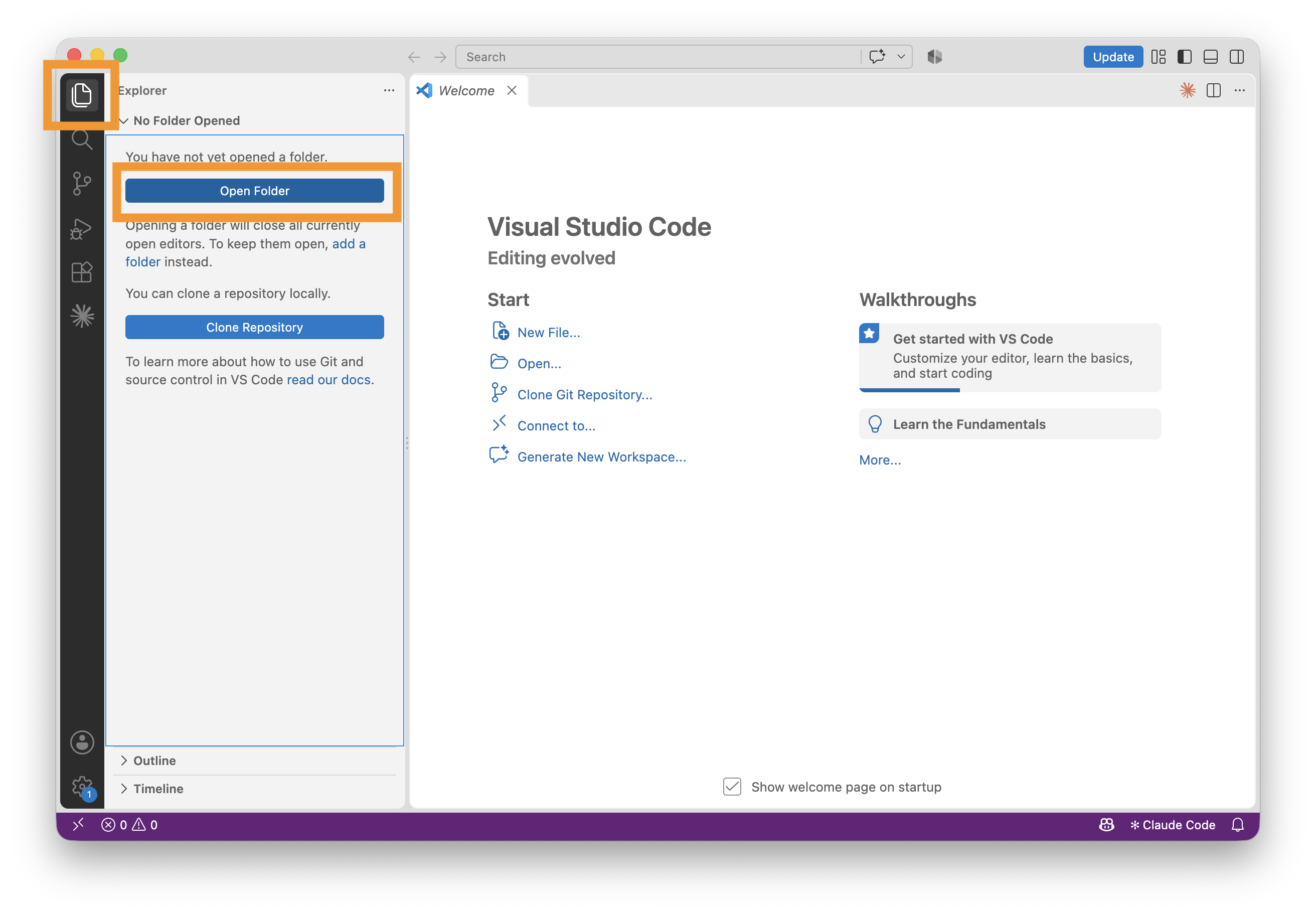
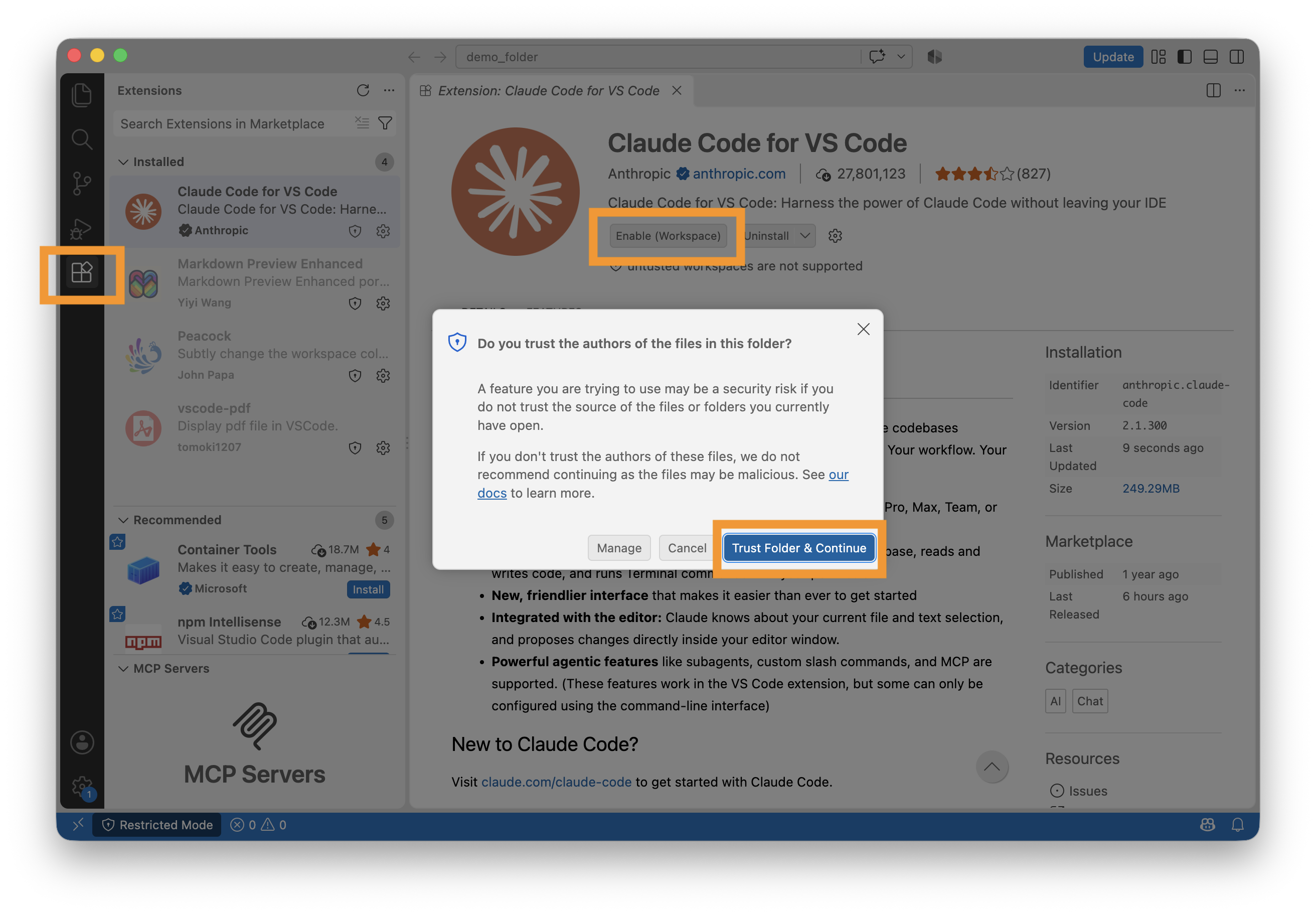
For our next step, we’re going to use Claude. If you don’t see the Claude icon in your sidebar, you may need to Enable Claude for your workspace. You can do this by clicking the Extensions icon, opening the Claude extension, and clicking the Enable button. This basically gives Claude rights to read the files in this folder.
Tell Claude to do the rest
By this point, you should be in your VS Code, and should see the Claude icon. Click on that icon if you haven’t already and create a new session. You can do this from right below where your USAGE displays. You can also do it by clicking the orange Claude logo near the top-right of your VS Code window.
Our prompt to Claude is basically going to detail our desired future state. We want an inbox folder, where files will go, and then we want those files to get processed, and we want to output cool stuff. You can paste this prompt into Claude, or write your own:
Create a folder called `inbox` with a `processed` folder inside it. In `inbox`, write a CLAUDE.md that says: whenever I say "process the inbox," take each new file in `inbox` (ignore CLAUDE.md, styles.md, and the `processed` folder), analyze it, and create a folder for it inside `processed` named after the file. In that folder, create two HTML pages: overview.html, a React page summarizing what the transcript covered, and slides.html, a slideshow with Next/Previous buttons and arrow-key navigation. Then move the original file into that folder. Also create a styles.md with a clean, modern style guide (white background, one accent color, card-based layout) and have CLAUDE.md follow it.After Claude noodles through this, you should see it reply with a success message! You can also see the folder structure on the left-hand side of the screen.
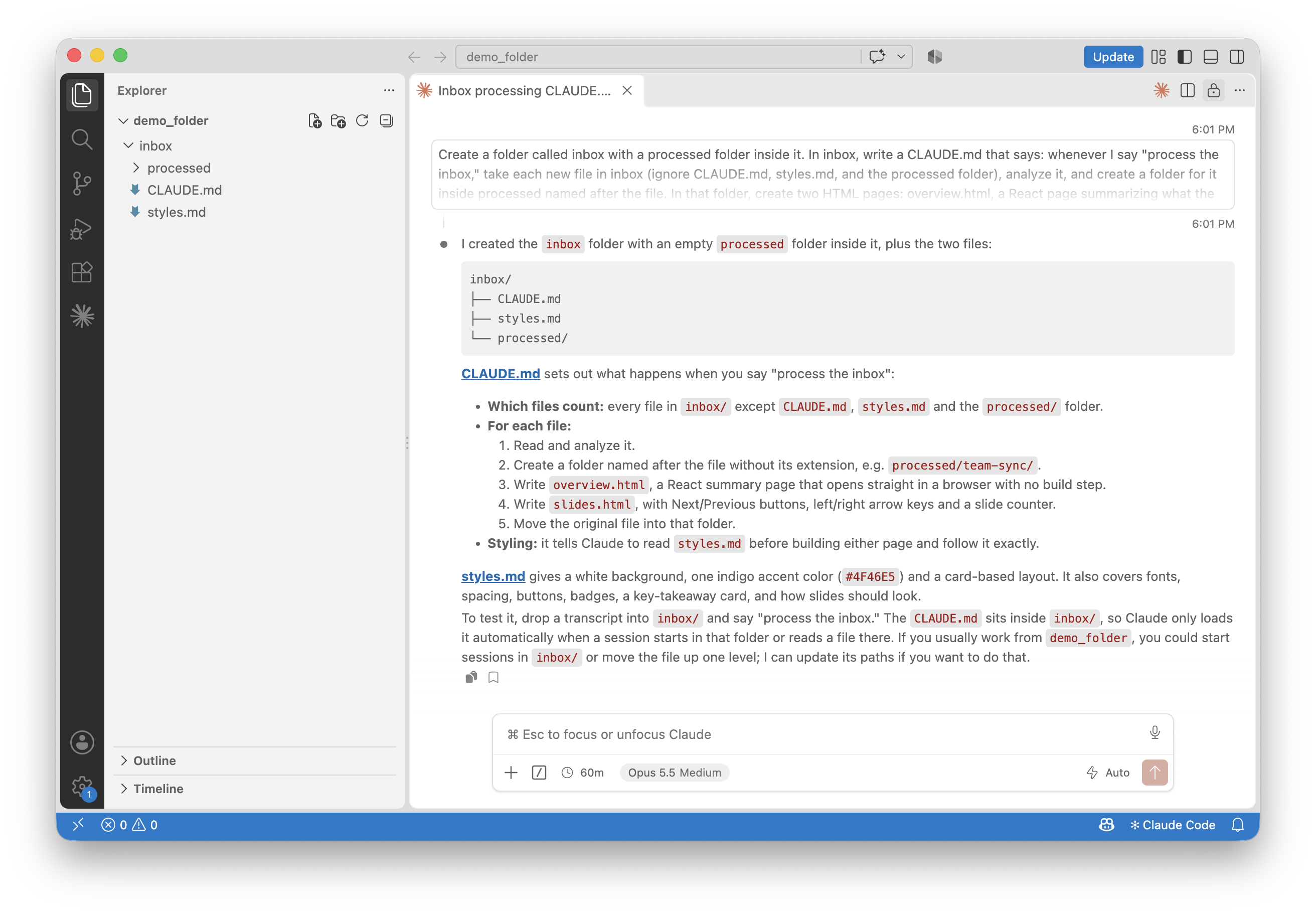
In VS Code, take a peek through the CLAUDE.md and styles.md files. Read them. You can see that they’re pretty much just plain English with some special characters. You can see that they provide instructions. Feel free to modify the files however you want - or tell Claude to modify them. I particularly like describing ideal styles, or sharing websites that have good styling, to Claude, for it to mimic. (I don’t know how to describe those things in the right terminology…)
If you’d like to mimic the styles that I showed earlier in my guide, they’ll be included in the Appendix.
But now that we have this set up, let’s test it out in the next post.