Testing It Out
Last update: October 14, 2026
I told you this would be pretty simple, right? We set it up in a matter of minutes. We can test it out in a matter of seconds.
How to test
If you already have a transcript file you’d like to try this out on, all you have to do is drag it into your inbox folder and then tell Claude to process the inbox.
If you don’t have a transcript set up… hmm… what can we do about that…? (Hint: the answer is to tell Claude to make one.)
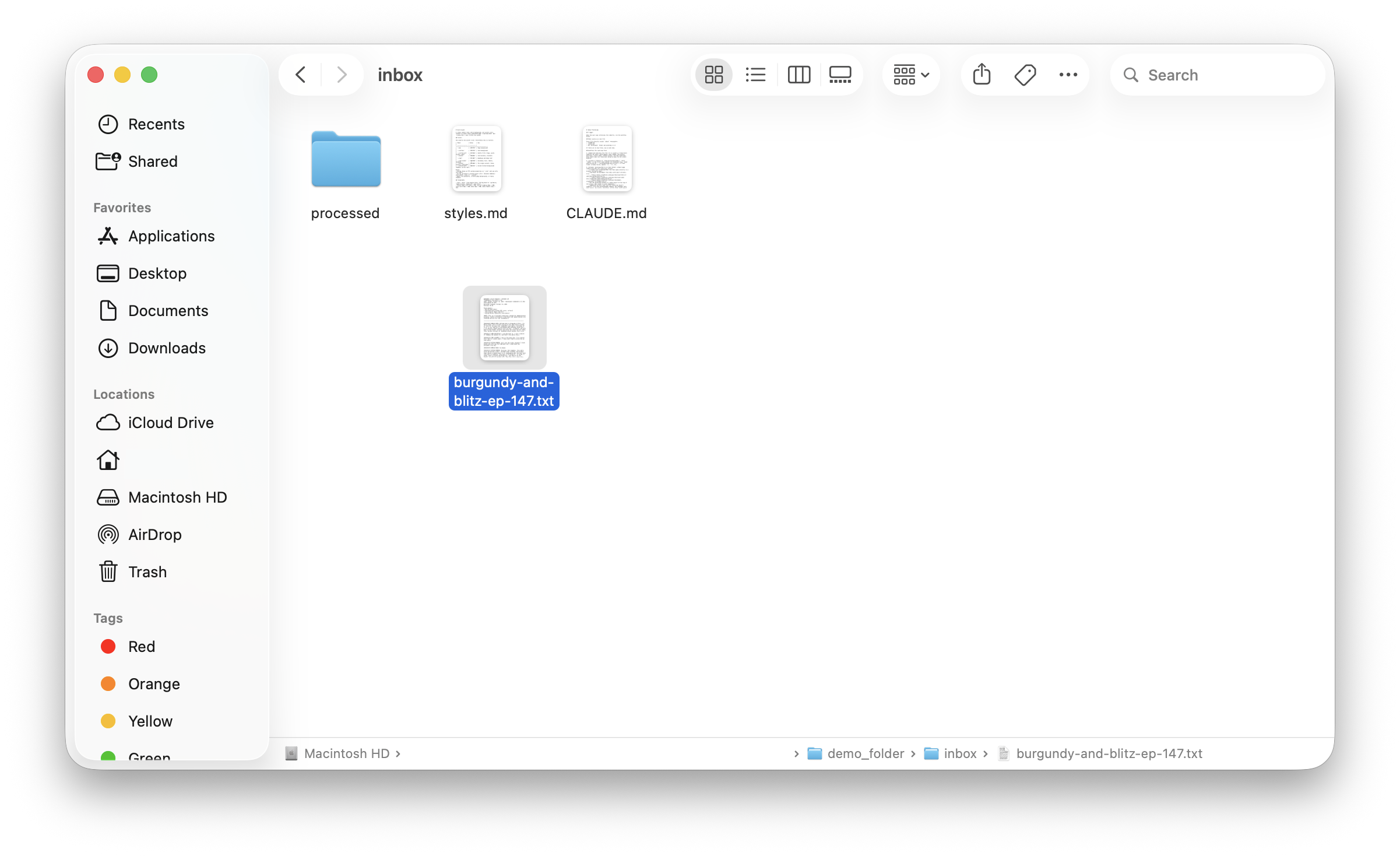
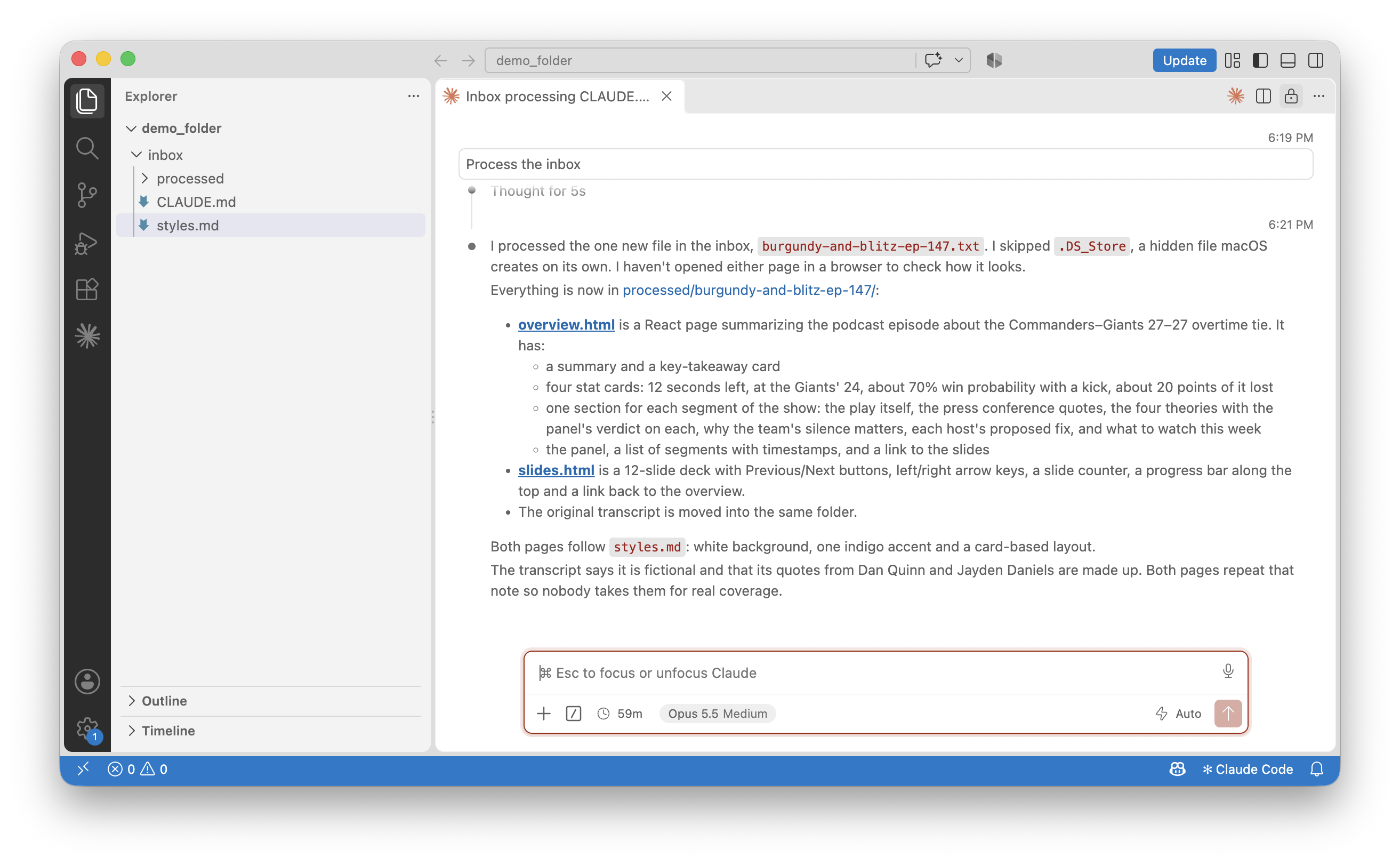
Then, open up your files and check them out. How do you get to your files? You can navigate through your file explorer, or, as I like to do, tell Claude to open the files in Chrome (or whatever browser you use). Claude will execute a command and the files will open in your browser.
Improvements you can make
If you’re not a huge fan of the stylesheet… give Claude feedback. Tell it what you’d like to see. You want it to be in dark mode? That’s an option. You want your company logo in the top-left corner of the screen? That’s also an option. Have a conversation with Claude to achieve what you’re looking for!
How can I share this?
As a .html file
You can email these as HTML files to anyone. (HTML file is just a page that renders in your web browser.) I recommend including instructions for them to download the HTML file and open it up after downloading, as sometimes previewing within the email provider can break functionality.
As a .pdf
But what about PDF? I said earlier that we can spit these out as PDFs too. We still can. My favorite way to do this is to tell Claude to “make this doc print-ready.” Then, I’m able to CTRL/CMD + P and export this as a PDF. You can also tell Claude to output directly as a PDF file.
In the next topic, we’ll answer the “What else?” question.